
Canned Letter Vercel App: Website, Editor & Can Preview
Canned Letter is a Vercel-hosted creative app that turns a short personal message into an illustrated can. Its distinctive feature is the product interaction: a sender composes a small gift, previews an arriving can and invites the recipient into an opening ritual. Here is what is visible at canned-letter.vercel.app, what we tried and what remains unverified.
Open Canned Letter ↗- Project website
- canned-letter.vercel.app
- Main use
- A personal letter packaged as a digital can
- Public preview access
- No account or payment encountered
- Editor limits observed
- 16-character title; 1,000-character letter
- Optional media shown
- 10-second sound; up to one photo
- Creator credit
- Homepage links to shoko.oym
- Checked
- October 18, 2026
Independent guide. AINavly does not operate Canned Letter; our check stopped at the text-only preview.
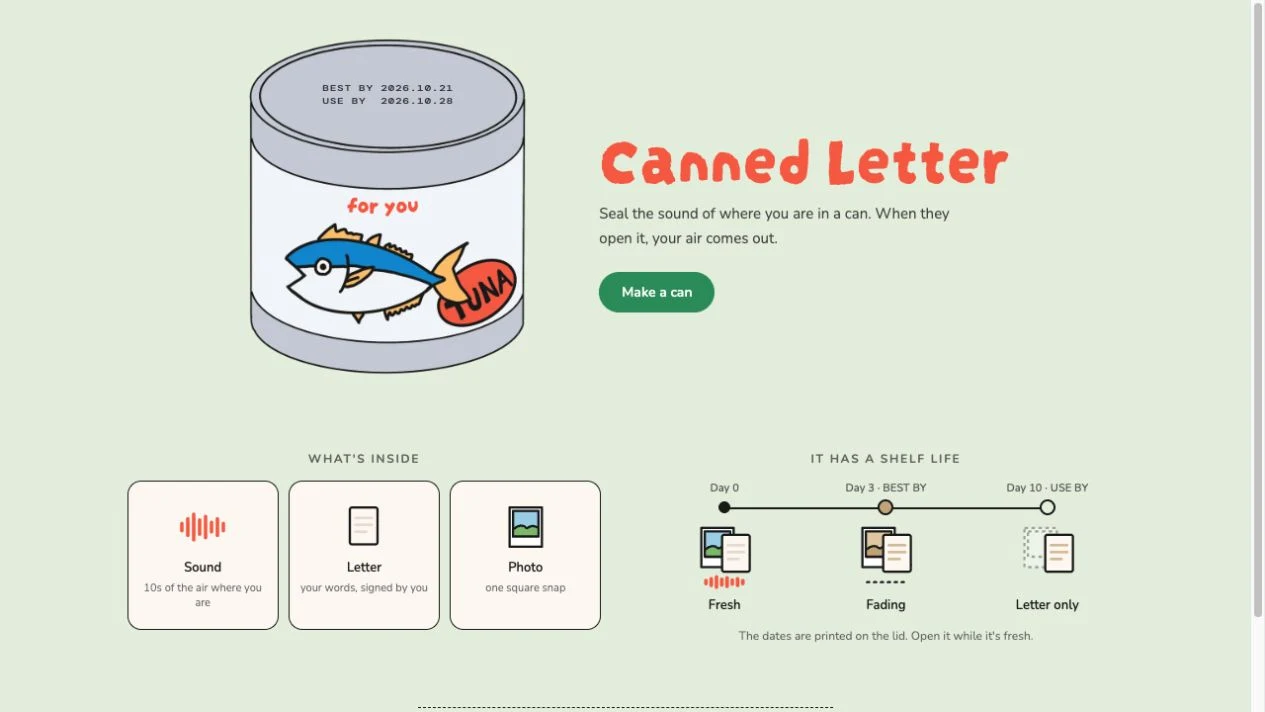
Where is the Canned Letter Vercel app?
Open canned-letter.vercel.app for the project covered in this profile. “Canned Letter” is its displayed product name; “Vercel app” describes the supplied deployment address. The hostname does not by itself identify the app’s framework, storage system or privacy protections.
The landing page links to a Make a can editor at /new and credits the creator handle shoko.oym. We found no sign-in or checkout gate in the public editing and preview path. We did not inspect the later link-creation stage.
What makes the editor distinctive?
The composition is organized around an illustration rather than an inbox. The inspected choices are tuna, tomato and apple cans. A title sits on the can, while separate fields collect the letter and the name presented as the sender.
The title counter tops out at 16 characters and the letter counter at 1,000. Our longer test title was truncated to the visible limit. The sound option advertises ten seconds and is labeled optional; a separate photo control allows one image. We did not test media capture or file handling.
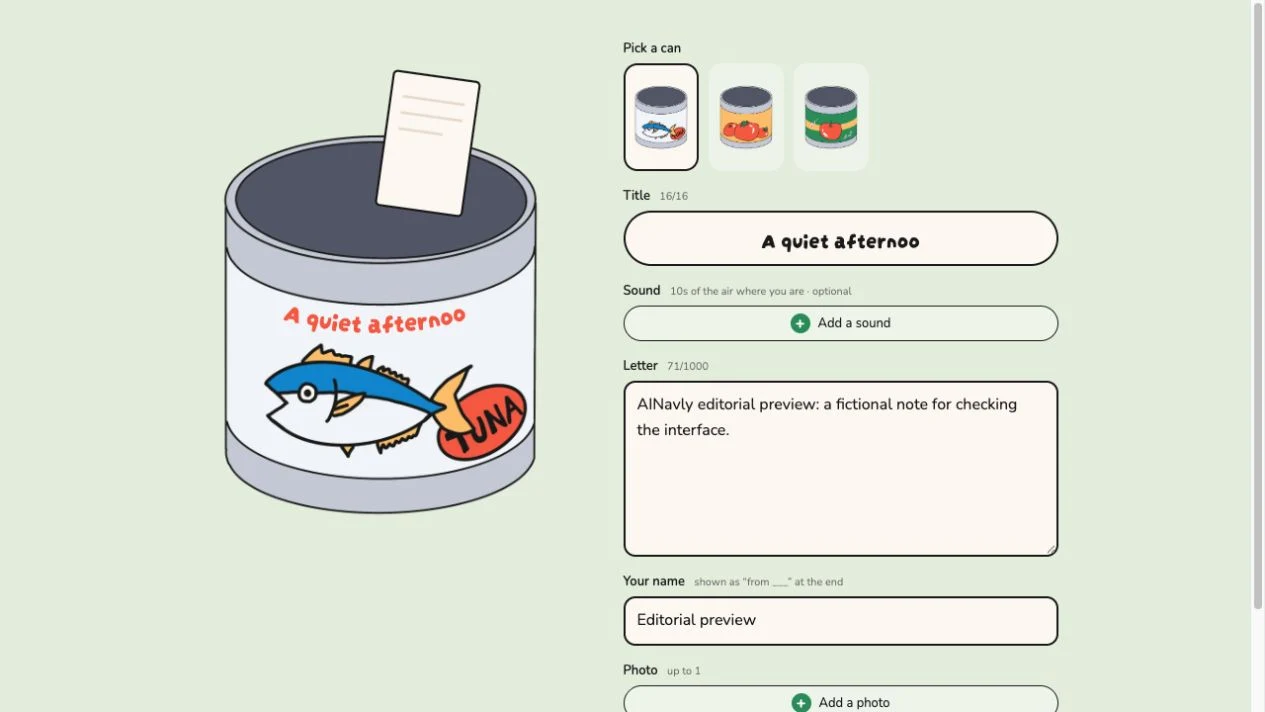
How do you try the Canned Letter app?
- Follow Make a can from the homepage to the editor.
- Pick a can illustration and enter a brief, non-sensitive sample title.
- Write a short letter and set a sender name.
- Leave sound and photo unused if you only want to inspect the text flow.
- Select Preview, then pick up the illustrated can to inspect the next interaction.
- Use Edit to return to composition before considering the separate sealing action.
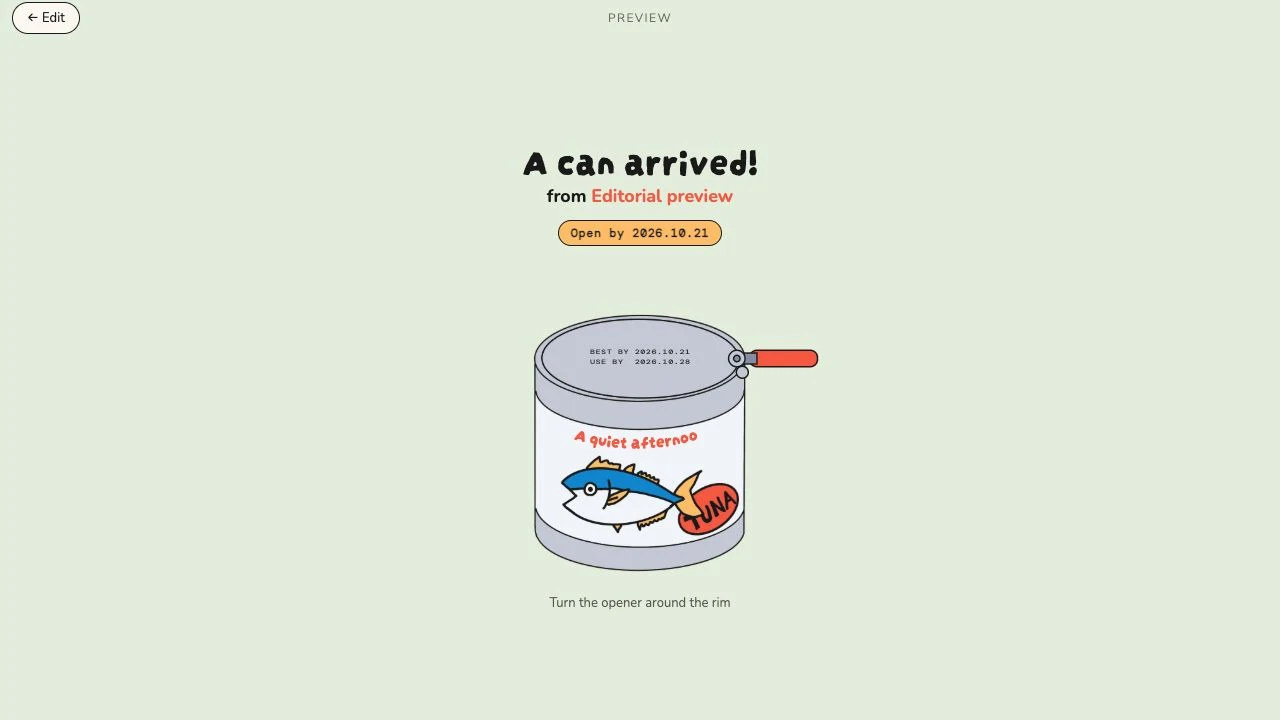
What happens in the recipient preview?
Our fictional note reached a screen announcing an arriving can, displaying the sender name and showing dates on the lid. After we picked up the can, the interface asked us to turn the opener around the rim. Returning to Edit restored the composition view with our entered text still visible.
We did not finish opening it or test a published recipient URL. This distinction matters when evaluating a playful interface: reaching an animated preview is evidence of that preview flow, not proof of successful sealing, delivery, photo display or sound playback.
How does its freshness concept work?
The landing page explains a fresh stage, a day-three fading stage and a day-ten letter-only stage. The illustrated progression changes the media and visual treatment rather than presenting the gift as a timeless document. The dates are shown directly on the can lid.
These timeline behaviors are described by the app and were not time-tested. We cannot establish whether an already opened can behaves differently, whether media can be recovered or how long the final letter remains accessible.
What should you inspect before sealing?
The editor separates Preview from Seal & get link and warns that sealed content cannot be changed. That makes the preview a meaningful decision point: check the title after truncation, the sender name and the message before taking the next step.
There is no basis in our interface check for promising private links, permanent storage, deletion controls or downloadable backups. The visible optional creator-support link is not evidence of a subscription, and the absence of a payment screen in preview is not a verified pricing policy for every action.
Why might the Vercel app or preview fail?
Confirm the exact project hostname and whether the failure is on the homepage, /new editor or preview. Try a current browser and check the page’s own validation before repeating the same action. Preserve the message separately before a reload.
For the opening interaction, follow the displayed gesture instruction; we did not verify completion with every input method or device. For sound and photo controls, inspect any permission or format requirement rather than assuming a browser preview establishes compatibility.
Frequently asked questions
Where can I find canned letter vercel app?
Use https://canned-letter.vercel.app/. The homepage identifies the project as Canned Letter.
What are the can designs?
The editor we inspected offered tuna, tomato and apple designs.
How long can the letter be?
The inspected editor showed a 1,000-character letter counter and a 16-character title limit.
Can I preview without adding sound or a photo?
We entered text and a sender name and reached Preview without adding either media type.
Has AINavly tested a sealed share link?
No. We inspected the text preview and returned to the editor; link generation and delivery were not tested.
Is it built with Next.js?
We did not verify the framework. A Vercel hostname alone is not enough to establish the technology stack.
Sources and check scope
Checked October 18, 2026: opened the homepage and /new editor, entered fictional text and an editorial sender name, opened Preview, picked up the can and returned to Edit. We did not complete the opener gesture, record sound, upload a photo, seal a can, generate or send a recipient link, or test the multi-day shelf-life behavior. Pricing beyond preview, privacy controls, deletion and long-term retention were not verified.