
VERCEL PROJECT DISCOVERY · INTERACTIVE EDUCATION

Learn Arduino Vercel App: Interactive 3D Course
At learn-arduino-red.vercel.app, Learn Arduino turns a beginner electronics course into a coordinated 3D workspace. This guide to the learn arduino vercel app focuses on the project’s interface: annotated components, a lesson rail, linked code parameters, a live schematic and serial feedback. The app credits designer and developer Dilum Sanjaya.
- Focus
- Beginner electronics
- Format
- 16 interactive lessons
- Access
- Free public browser lessons
- Creator
- Dilum Sanjaya
Why this Vercel project is worth inspecting
The interface makes an abstract topic visible through several connected views. It places a board, explanatory labels, sketch code and simulation output in one workspace, with compact controls for moving between lessons. This is a useful project reference for interactive education and visual explanation.
The exact Learn Arduino Vercel destination
The hostname learn-arduino-red.vercel.app identifies this deployment. The browser title describes Learn Arduino as interactive 3D lessons for beginners. Its own metadata names Dilum Sanjaya and lists 16 free lessons. A Vercel address describes the public destination; it does not establish that Vercel or Arduino publishes the course.
The first visit loads the board and generates lesson-card previews before presenting the workspace. In our browser, the app initially chose simplified Chinese; the Language control switched it to English and changed the URL to the English root.
A workspace built around the circuit
A cream circuit-pattern background frames the 3D board. Part labels connect to points on the model, information tabs sit to the right and a lesson rail runs across the bottom. A compact view toolbar provides rotation, zoom, reset, current-flow and schematic controls.
The result is a project you can inspect spatially as well as textually. Dragging or WASD pans the view, Q and E rotate it and the mouse wheel zooms according to the on-screen control hint. These controls are visible affordances; our interaction review concentrated on lessons, parameters and the schematic.
Code parameters and component controls stay connected
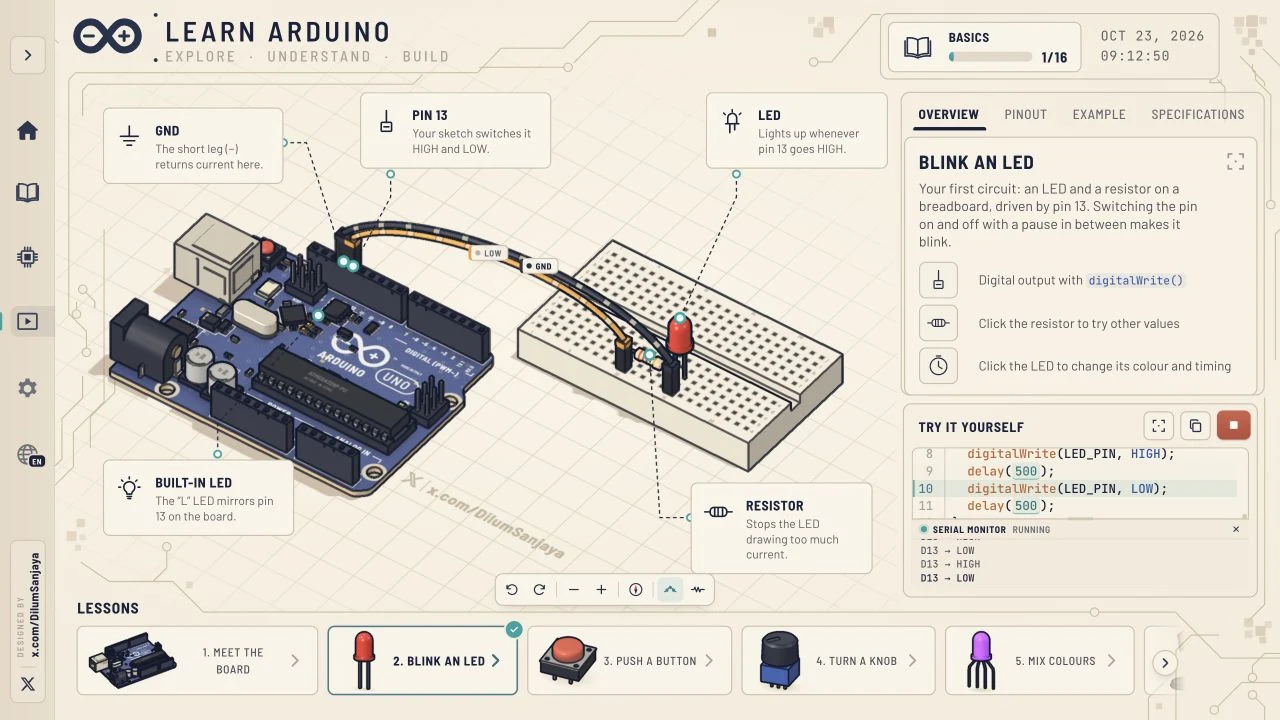
In Blink an LED, clicking a delay value opened a component inspector rather than a full text editor. Choosing Green and changing ON FOR from 500 to 900 ms updated the displayed code and inspector. This gives a concrete example of a parameter-driven lesson interface.
Run sketch changed the monitor from an uploading state to RUNNING, with D13 HIGH/LOW output. The browser also showed lesson progress after running the example. We did not verify how progress is retained across sessions or whether arbitrary code can be entered and executed.
The schematic adds a second representation
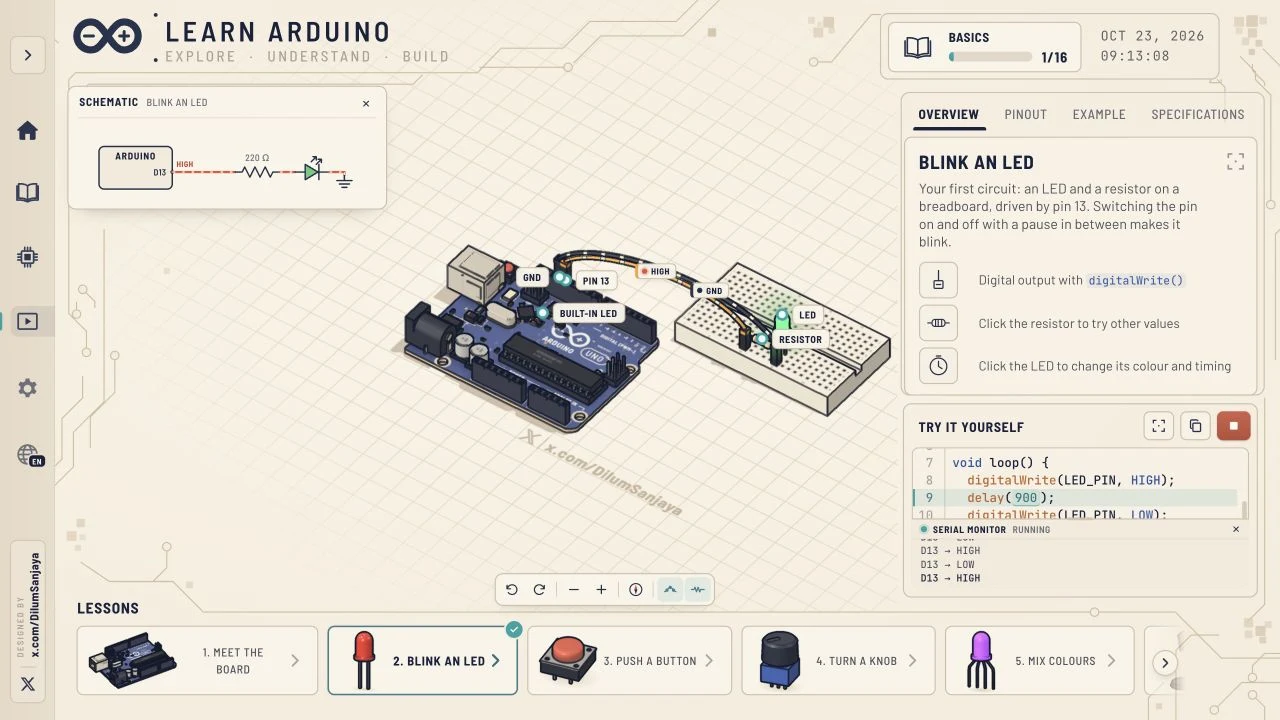
Show schematic displayed a small circuit diagram above the 3D scene. During the running LED lesson, the diagram named D13 and the resistor while the 3D board and serial monitor stayed in view. That arrangement lets the learner compare symbols, object placement and output without navigating to a separate lesson page.
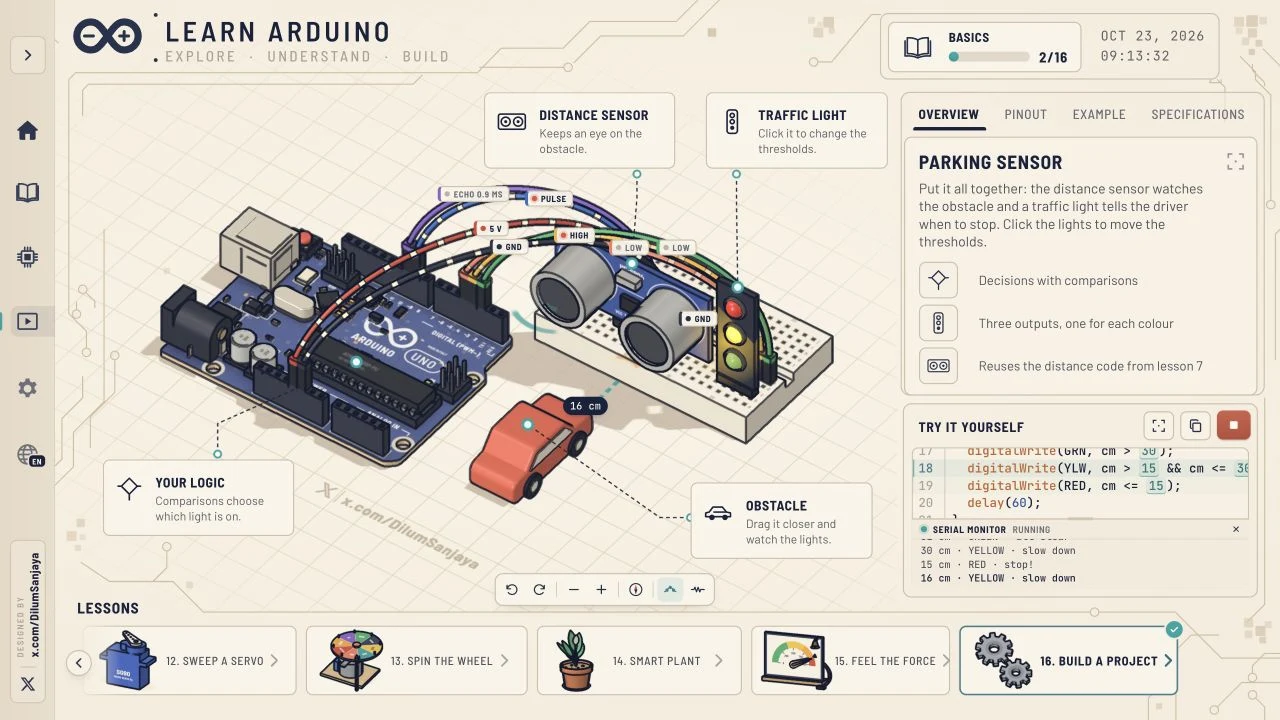
The final Build a project lesson displayed a parking sensor with an ultrasonic sensor, traffic light and obstacle. Running the supplied example produced distance readings and changing traffic-light states. The screenshot below documents that scene; it is not a physical hardware test.
Lessons, languages and access
The application currently lists 16 lessons and a Language menu with 12 choices. That combination broadens the entry points to the same learning workspace. We verified the Chinese-to-English switch and read the English course selector; we did not audit every translation.
The project says it requires JavaScript and WebGL. Its public lessons opened without sign-in or payment during our visit. Device performance, complete keyboard accessibility, arbitrary circuit design, real-board connectivity and long-term availability were outside the review.
A practical first session
- Open learn-arduino-red.vercel.app and allow its loading stage to finish.
- Use Language to select English if the browser opens another locale.
- Inspect the board labels and select Blink an LED from the lesson rail.
- Run the sketch and compare its code, scene and serial monitor.
- Open a delay parameter to inspect the linked LED controls.
- Enable Show schematic, then compare the diagram with the 3D circuit.
All 16 Learn Arduino lessons
The course selector currently lists the following lessons. We verified the selector and tested two supplied sketches; this is not a claim that every exercise was completed.
- Meet the board
- Blink an LED
- Push a button
- Turn a knob
- Mix colours
- Sense light
- Read a sensor
- Make a sound
- Mini piano
- Control a motor
- Sense heat
- Sweep a servo
- Spin the wheel
- Smart plant
- Feel the force
- Build a project
Made by Dilum Sanjaya
The application links its design credit to Dilum Sanjaya on X and names him in structured author metadata. His personal website collects creative coding and interactive experiments. This attribution identifies the project’s creator; it does not imply an endorsement of this independent AINavly listing.
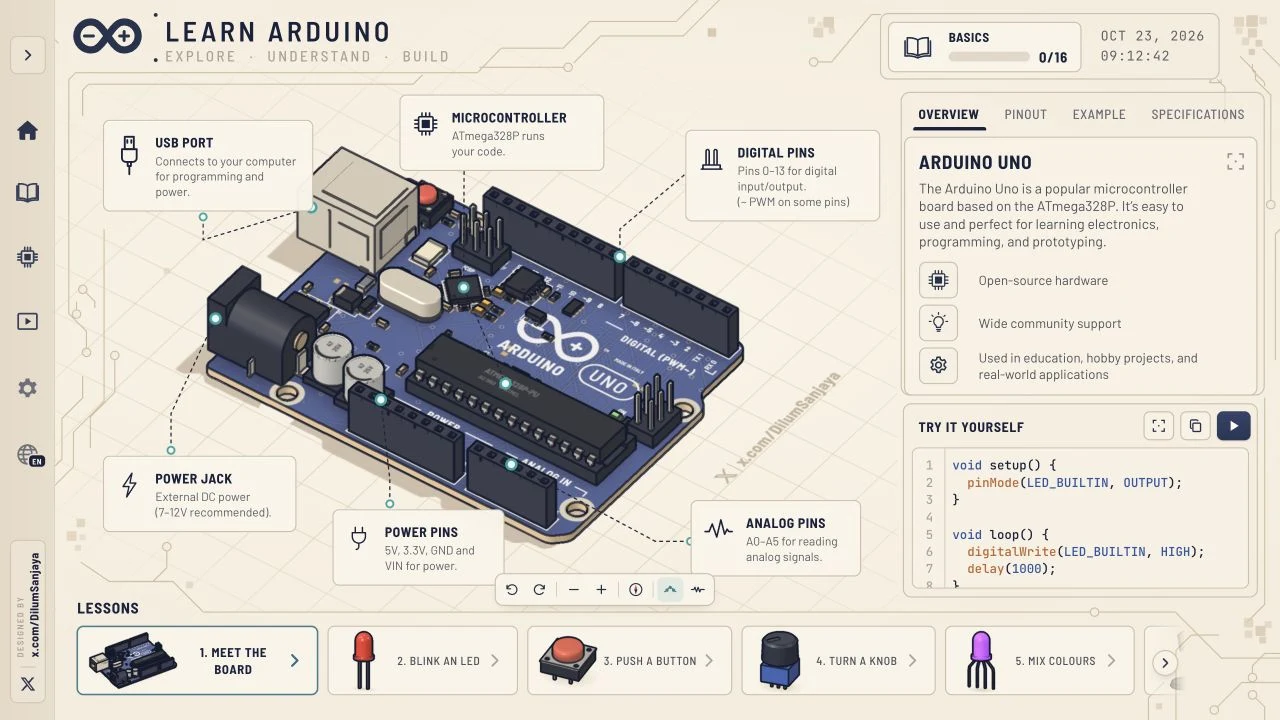
Real screenshots of Learn Arduino
Captured from the English browser interface on October 23, 2026. These are screenshots of the application, not generated mockups.
Learn Arduino Vercel app FAQ
Where is the Learn Arduino Vercel app?
The exact deployment reviewed here is https://learn-arduino-red.vercel.app/. Its project name is Learn Arduino.
Who built this project?
The application credits Dilum Sanjaya and links to https://x.com/DilumSanjaya. The same name appears in its author metadata.
What makes the interface interactive?
The tested LED lesson connected a 3D circuit, a running sketch, serial output, a component inspector and a schematic. Changing a supported timing value updated the code display.
How many lessons are currently listed?
There are 16 in the inspected course selector, ending with Build a project. Counts can change as the creator updates the app.
Is Learn Arduino free to access?
The project describes 16 free lessons, and the tested public workflow did not require payment or an account on October 23, 2026.
What does the browser need?
The application’s own metadata specifies JavaScript and WebGL. We tested a desktop browser; performance across all phones, tablets and browsers was not assessed.
Is this an official Arduino or Vercel course?
We identified Dilum Sanjaya as the credited creator. We did not verify an official publishing or endorsement relationship with Arduino or Vercel.
Sources & review scope
Checked October 23, 2026: application HTML and author credit, official favicon, English/Chinese language switching, the 16-lesson selector, board overview, LED sketch RUNNING with HIGH/LOW output, Green LED and 900 ms ON FOR adjustment, schematic display and the parking-sensor sketch RUNNING with distance/light-state messages. We did not complete all lessons, test unrestricted code compilation, physical hardware uploads, mobile performance or long-term progress storage.
- Learn Arduino: live application, lessons and creator credit ↗
- Dilum Sanjaya: creator profile linked by the app ↗
- Dilum Sanjaya: personal website and background ↗
The app’s own favicon is used unchanged. Its visible creator credit and metadata support the attribution; the X profile’s posts and follower counts were not independently read. This is an independent guide, not an official Arduino publication.